Home/How to Use TI-84
How to Use TI 84 Calculator: Step-by-Step Guide
Using a TI-84 for the first time can feel confusing, even when you already understand the math problem. You may see several labels on one key and wonder which button opens fractions, letters, roots, or graphing tools. I have noticed that most beginners do not struggle with the calculations themselves. Once you understand how to use TI 84 calculator controls, the layout begins to feel much more familiar.
The TI-84 calculator main key labels handle everyday commands, while the 2nd and ALPHA keys open extra functions. You can also enter stacked fractions, graph equations, trace curves, and fix common errors without clearing the calculator’s memory. We will begin with the keypad because every other feature depends on it. After that, you can move naturally into Ti 84 fractions, graphs, and simple troubleshooting.
Getting Started: How to Use TI 84 Calculator Keypads
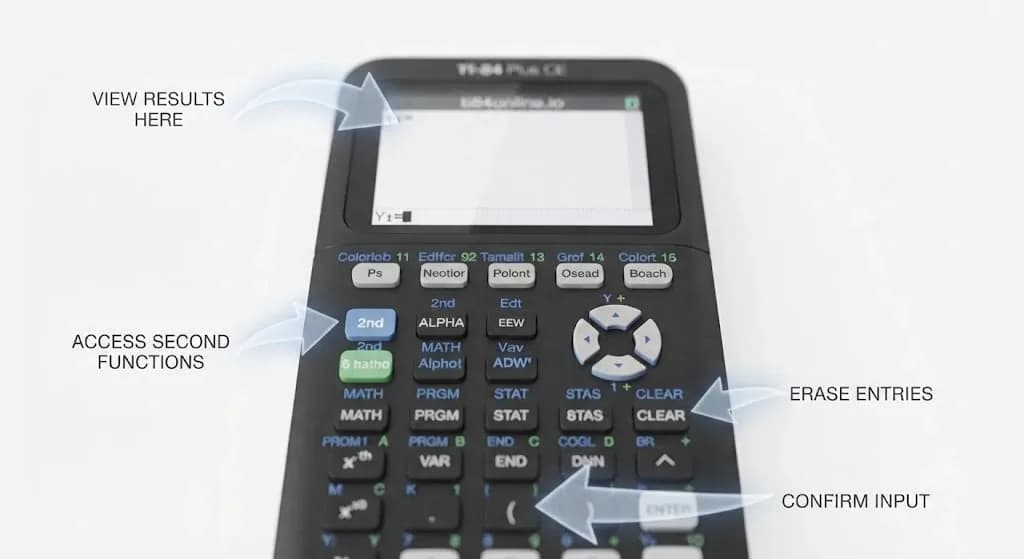
The keypad looks crowded because many buttons have more than one purpose. You can read each key in layers: the main command is printed on the button, while the second functions and letters appear above it. The controls below will help you to move around the calculator with more confidence.
The Primary Command
The label printed directly on a key is its normal command. For example, MATH opens the Math menu, LOG enters a logarithm, and x² squares a value. After you finish typing an expression, ENTER calculates it and shows the answer.
You can also use the arrow keys to move through an expression before calculating it. This helps you to correct one number or sign instead of typing the entire calculation again.
Second Shift Method
The 2nd key opens the function printed above another button. You can press 2nd and then x² to enter a square root, while 2nd → MODE works as the QUIT command. When you select 2nd by mistake, pressing it again cancels the mode. You can use it to check whether the calculator is waiting for the main command or the upper command.
Alphabet Method
You can press ALPHA before a key when you need the letter printed above it. This becomes useful when you name a program, store a value in a variable, or type text in TI-Basic. For one letter, you only need to press ALPHA and then the correct key.
When you need several letters, 2nd → ALPHA turns on Alpha Lock. The calculator will continue entering letters until you press ALPHA again.
Quick Workspace Escape
Menus can feel confusing when you do not know how to leave them. In most areas, 2nd → MODE returns you to the home screen without removing saved work. The CLEAR key has a different job. It removes the current entry or clears the visible home-screen lines, depending on where your cursor is placed.
The Fraction Method: How to Use TI 84 Calculator to Type Fractions
A fraction can be typed with the division key, but the MathPrint template looks closer to the form used in textbooks. The next three steps show how the shortcut menu and fraction box work together.
Open the Fraction Menu
In some TI-84 Plus and TI-84 Plus CE calculators, ALPHA → Y= will give access to the fraction menu shortcut. In a newer version of TI-84 Plus CE calculator, ALPHA → X,T,θ,n will bring the n/d template right onto the screen. Both methods allow you to enter a stacked fraction instead of using a one-line division expression.
Paste the Fraction Box
When the shortcut menu opens, you can choose 1/d. The fraction box appears at the cursor with the numerator area active first. You will also see an empty space underneath it for the denominator.
Enter Your Numbers
Simply type in the top part and press down the arrow key for getting inside the denominator box. Once you have done that, pressing the right arrow key will get you out of the template box. You may add another operation or press ENTER.
TI-84 Plus CE Graphing Calculator: Plotting Equations in 4 Steps
Graphing becomes easier when you use the screens in the right order. We will enter the function first, restore the graph window, and then bring the curve into view.
Open Your Y= Screen
You can press Y= to open the function editor. The use of lines like Y1, Y2, and Y3 enables you to input multiple equations simultaneously. This facilitates the comparison of two or more functions in one single graph. When an old expression is still present, you can move the cursor onto it and use CLEAR.
Type Your Equation and the X Key
You only need to enter the part that comes after y =. For y = 2x + 3, you can type 2 → X,T,θ,n → + → 3 beside Y1. In Function mode, the variable key enters X automatically.
Standardize Your Grid Window
A graph can sit outside the visible area even when your equation is correct. You can press ZOOM and choose 6 to restore the common graph-window values. When your function uses unusually large or small numbers, the WINDOW menu lets you change the minimum, maximum, and scale values.
Press the Graph Button
Once the equation and viewing window are ready, GRAPH draws every active function. You can then press TRACE and move along the curve with the arrow keys.The new values of X and Y will assist you in identifying the position of each point in relation to its location on the graph.
Troubleshooting Method: How to Fix Common Errors
You might still encounter this error even when you know how to use TI 84 calculator menus. Mostly, this means that your calculator is highlighting some typing error or settings that are currently in effect.
- The “Syntax Error” Fix: Check for missing brackets, an unfinished fraction, or the wrong negative key. Select 2: Go to return to the mistake and correct it.
- “Invalid Dim” Fix: The error appears when a Stat Plot is active. Press 2nd, then press Y= to open the Stat Plot menu. After that, select 4: PlotsOff and press ENTER to turn off all active plots. Then press GRAPH again to check whether your equation appears.
- Black Screen Recovery: To increase the contrast on the TI-84 Plus calculator, you must press 2nd + the up arrow key. In the case of a TI-84 Plus CE calculator, ensure that it is charged and reset using the back reset button.
Frequently Asked Questions
How do I turn a decimal answer into a fraction?
You can enter the decimal, press MATH, choose 1:►Frac, and then press ENTER. The answer will appear as a fraction when the value has a supported fractional form.
Where is the square root button on a TI-84?
The square-root symbol appears above the x² key. You can open it with 2nd → x², enter the value or expression, and press ENTER.
How do I clear everything on the screen?
You can press CLEAR to remove the current entry. When the entry line is already empty, pressing CLEAR removes the visible home-screen entries without deleting your stored programs or variables.
Final Words
Understanding how to use TI 84 calculator becomes easier when you practise the basic keys and graphing steps. You can enter fractions, plot equations, and fix common errors with more confidence. After you learn the fundamentals of these commands, you are ready to move forward into learning about the table and statistical features of the calculator.