Home/What's New
What’s New in TI 84 Plus CE & TI-84 Evo Graphing Calculators
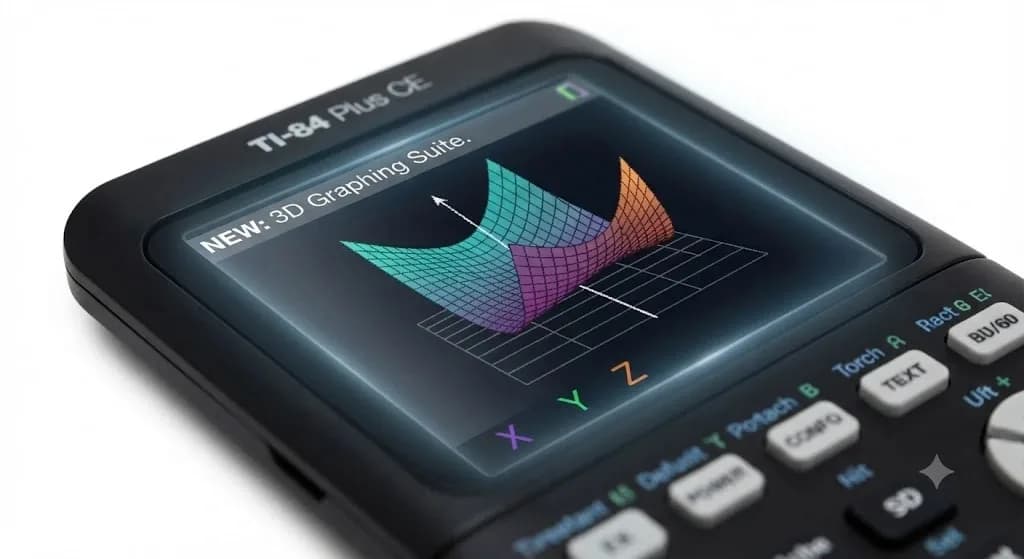
Using an older graphing calculator can sometimes slow you down, especially when you are working under time pressure. You may find yourself opening several menus just to change an answer, locate an app, or study a point on a graph. I think the calculator still gets the job done, but the old text-heavy layout can feel dated when you are used to modern apps. These small problems explain why many students now search for what’s new in TI 84 before choosing a newer model.
The TI-84 Plus CE started off by improving the traditional experience with a color display, MathPrint, a rechargeable battery, and a sleeker frame. But now, the new generation of TI 84 Evo has come to further improve things with a home screen, USB-C connectivity, increased graphing space, and a 156 MHz processor. However, all these Evo capabilities may not be available in all TI 84 Plus CE models.
You will also see how our free online TI 84 Plus CE & TI 84 Evo graphing calculators compare when you need quick access without carrying a physical calculator.
TI-84 Generation Comparison: Old vs. New
Each TI-84 generation improves a different part of the experience, so it helps to compare them side by side. Before we explore what’s new in TI 84 in detail, the table below gives you a clearer look at the main differences.
| Feature | Older TI-84 Plus Models | New TI-84 Plus CE & Evo | Our Free Online Emulator |
|---|---|---|---|
| Main Menu UI | Boring, text-only lists | Smartphone-style icon grid | Clean, instant web design |
| Graphing Screen | Small with thick black borders | 50% larger borderless display | Full monitor scaling |
| Fraction to Decimal | Slow menu hunting combos | Dedicated physical <> button | One-click instant toggle |
| Charging Port | Outdated Mini-B USB wire | Universal USB-C port | No cables needed (Browser) |
| Processing Speed | Standard baseline speed | 3× faster engine loading | Fast cloud processing |
Say Goodbye to Text Lists: What’s New in TI-84 App Interfaces
The old TI-84 menu system becomes easier after you memorize it, but that learning process can take time. The Evo changes this experience by placing major tools on a visual home screen, so let us look at how the TI-84 app system has moved beyond long text lists.
Replacing the Clunky APPS Key Menu
Older TI-84 models make you open the APPS menu and scroll through a text-based list to find the tool you need. The TI-84 Evo replaces much of that searching with an icon-based home screen that places common math, graphing, list, and solver tools in clear sections. You can now recognize each feature visually and open it with fewer steps.
New Smartphone-Style Icon Grid
The TI-84 Evo home screen uses separate icons. When I compare this layout with the older APPS list, the newer design feels closer to opening apps on a phone. You can recognise the type of tool more quickly instead of reading one name after another.
Bigger Windows, Sharper Curves: What’s New in TI 84 Display Screens
The CE and Evo both use a 320 × 240 color screen, so the main display resolution has not increased between these two models. The real Evo improvement comes from using more of that screen for graphing, which gives us three useful display changes to examine.
The 50% Expanded Graph View
The TI-84 Plus CE gives you a graphing area of 264 × 165 pixels, while the Evo increases it to 319 × 209. It describes this as 50% more graphing area, even though the physical screen resolution remains the same. You can view more of a function at once, which feels helpful when several curves or intersections share the graph.
True Geometric Proportions
A larger graph window gives circles, parabolas, and other shapes more room to appear clearly. However, you still need suitable x-axis and y-axis settings because a wider screen cannot correct an uneven scale by itself. Once the window values are balanced, the larger Evo graph area can make geometric relationships easier for you to inspect.
Full-Sized MathPrint Font Scaling
MathPrint allows fractions, roots, powers, and other expressions to appear in a familiar textbook form. You already get this feature on the TI 84 Plus CE, while the Evo keeps it inside its redesigned app system. Therefore, the change is less about a new font and more about showing familiar notation within a cleaner, less crowded workspace.
The Fastest Shortcuts: What’s New in TI-84 Button Layouts
A TI-84 Plus CE calculator can have powerful functions and still feel slow when those functions are difficult to find. Another useful part of what’s new in TI 84 is the way the Evo reorganizes the keypad and places common functions within easier reach.
No More Deep Menu Hunting
The Evo keypad removes some visual clutter and makes common commands easier to notice. It also includes F1 to F4 shortcut menus for fractions, math functions, matrices, and Y-variable tools. We still need menus for advanced work, but you can reach many everyday commands with fewer steps.
Instant Fraction-to-Decimal Conversions
The Evo includes a physical toggle key that changes supported answers between different forms. For example, you can switch the decimal result of 4 ÷ 3 to the fraction 4/3 without returning to a long Math menu. Our online emulator follows a similar approach by giving you direct format-changing control.
Under the Hood: What’s New in TI 84 Speed and Battery Life
The TI-84 Plus CE and the Evo both have rechargeable batteries, so you will not have to change out the AAA batteries. However, the Evo improves the hardware with USB-C charging and a much faster processor.
- Universal USB-C Charging Ports: The TI-84 Plus CE has a Mini-B USB port, whereas the Evo has a USB-C port. This means that you should find charging the calculator easier, as USB-C is quite common.
- The 3x Faster Processor Engine: The TI-84 Evo runs on a 156 MHz processor, compared with the CE’s 48 MHz processor. This faster engine helps graphs to load more quickly and makes apps and larger calculations feel smoother.
Smart Tracing: TI-84 Curve Analysis Tracking
The TI-84 Evo makes graph tracing more visual and easier to follow. Instead of only watching coordinates change, you can see important points directly on the curve.
- Intelligent Points of Interest: As you move along a graph, the Evo can highlight zeros, intersections, maximums, minimums, and y-intercepts. This helps you to find key locations without opening several separate menus.
- Instant Visual Labels: Important values appear close to their actual position on the graph. You can quickly connect each coordinate with the curve, which makes graph analysis feel clearer and less confusing.
Frequently Asked Questions
Can I get the new smartphone-style home screen on my older TI-84 Plus CE?
No, the icon-based home screen is only available on the TI-84 Evo.
What does the new physical <> button do?
The toggle key quickly changes supported answers between fraction and decimal forms.
Are the new models allowed on the SAT and ACT?
The TI-84 Plus CE is allowed, but you should check the latest exam rules before using the TI-84 Evo.
Is the graphing speed actually faster?
Yes, the Evo’s 156 MHz processor is more than three times faster than the CE’s 48 MHz processor.
Final Words
Understanding what’s new in TI 84 helps you to see that the latest changes go beyond a brighter screen. The TI-84 Plus CE still holds its reputation because of its color screen, MathPrint feature, rechargeable batteries, and exam approval. Meanwhile, the Evo comes up with a better processor, USB-C charging, an icon-based interface, an enlarged graph area, and smart curve tracing technology. I find the new menu layout especially useful because you can reach common math tools without memorizing as many button paths. Our free online emulator may also suit you when you prefer a larger screen and instant browser access.