Home/Install Games
How to Install Games on a TI-84 Plus Calculator
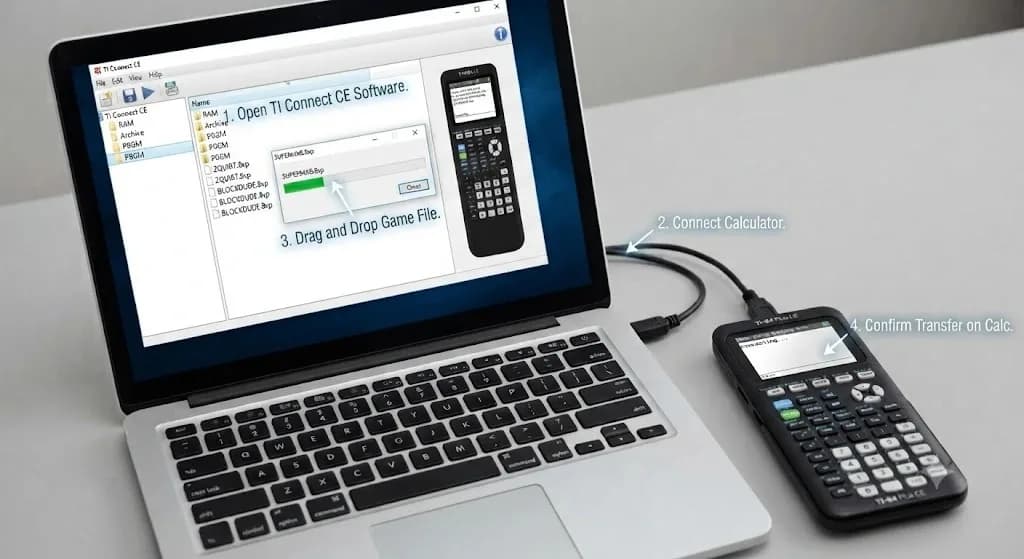
Your TI-84 Plus may spend most of its time solving equations, drawing graphs, and helping with classwork. However, you can also use it to run simple games when you have free time. The difficult part often begins when you download a game and see several files without knowing which one belongs on your calculator. After you know how to install games on a TI 84 Plus Calculator, the process feels much easier.
For installing the games on TI-84, you mainly need TI Connect CE, a suitable USB cable, and game files made for your exact calculator model. Some games open directly from the PRGM menu, while larger TI-84 Plus CE games may need extra libraries or a shell such as Cesium. We will move through the complete TI-84 Plus gaming installation setup without making the steps feel complicated. You will see how to prepare the files, transfer the game, open it on your calculator, and fix common installation problems.
The Setup: What to Download on Your Computer First
You do not need several tools to get started. A suitable USB cable, TI Connect CE, and a compatible game package will usually give you everything required. Once these items are ready, the transfer process becomes much easier.
Download TI Connect CE
TI Connect CE is the connectivity package used on the TI-84 Plus range of calculators. It can be used to access the contents of your calculator’s files, transfer programs, take backups, and handle TI-Basic projects from your Windows or Mac computer. After installing the software, you will mainly use the calculator explorer workspace.
Get Your .8xp Game Files
Many TI-Basic and calculator program files use the.8xp extension. You should extract the ZIP folder before choosing the files. I also suggest reading the included instructions because they normally tell you which calculator model is supported and whether extra files are required.
Step-by-Step: How to Install Games on a TI-84 Plus Calculator
Once you have checked the game’s compatibility, you can begin the transfer. We will keep the calculator connected until every required file has finished copying.
Plug in Your Calculator
Your TI-84 Plus or TI-84 Plus CE will connect to your computer through the compatible USB cable without much difficulty. Your calculator needs to be turned on, and the two ends of the cable must fit properly. The loose fit between the cable and the device might prevent the computer from detecting the calculator.
Open the Computer Software
You can open TI Connect CE and select Calculator Explorer from the left panel. Your connected calculator should appear inside the workspace.
When it does not show up, you can reconnect the cable, try another USB port, and reopen the software. Checking that the calculator is switched on may also solve the problem.
Drag and Drop Your Game File
Open the extracted game folder on your computer and select the required .8xp files. You can drag them into the calculator window in TI Connect CE.
Some games come with several required files, so sending only the main program may cause an error when you try to open it. TI Connect CE supports sending compatible programs and calculator files to connected TI-84 Plus family devices.
Send It to the Archive Folder
When TI Connect CE asks for a location, Archive storage can protect the game from a normal RAM reset. It also leaves more RAM available for active calculations and programs.
TI-84 Plus CE models running OS 5.3 or later can execute supported programs from Archive. Older TI-84 Plus models may show an ERR message, which means you need to unarchive the game before running it.
How to Open and Play Games on a TI-84 Plus Calculator
After the transfer finishes, you can safely disconnect the calculator. The opening method depends on whether the game is a standard TI-Basic program or a more advanced CE game.
- Navigate to the Program Menu: You can press PRGM to open the list of installed programs. The game name may appear shorter than the name of its computer folder.
- Find Your Game File: Use the arrow keys to locate the game. When you do not see it, the file may be archived, hidden by exam mode, or designed for a different calculator model.
- Select the Code Block: Press ENTER once after highlighting the program. The calculator will paste a command such as prgmGAME onto the home screen. Some older assembly games may use a different launch command. In that case, you should follow the instructions included with the game package.
- Run and Play the Game: Press ENTER again to open a normal TI-Basic game. Controls vary, but many games use the arrow keys for movement and 2nd, ALPHA, or ENTER for actions. You should only play games when your teacher or school allows them. Installing games should not interfere with classwork or exam rules.
Note on Complex Color Games: Some larger TI-84 Plus CE games use a shell called Cesium. Cesium creates a visual menu where you can highlight a compatible game and press ENTER to launch it. It is designed for the TI-84 Plus CE and related color models.
Troubleshooting Guide: How to Fix Common Transfer Errors
Even when you follow the correct steps, a missing file or memory problem can interrupt the installation. The fixes below cover the errors you are most likely to see.
- “Error Sending File” Warning: You can first check whether the ZIP folder was extracted and whether the file supports your exact calculator. A loose cable or interrupted connection may also stop the transfer. If the calculator has restricted space, deleting a program that is not being used will help.
- My Games Vanished After a Test: Exam mode can temporarily block programs and apps. Your files may still be stored on the calculator even when they no longer appear in the normal menus. You can use TI Connect CE to leave exam mode when your school or test rules allow it. Avoid trying to restore games during an active exam.
- The “Invalid Name” Error: Calculator program names follow shorter naming rules than normal computer files. Renaming a game with a simple uppercase name and no spaces may solve the problem. You should also avoid changing the names of supporting libraries unless the game instructions specifically allow it. The main program may search for those files using their original names.
Frequently Asked Questions
Can I install games on a TI-84 Plus CE Python Edition?
Yes, you can install compatible TI-Basic and CE game files on the Python Edition. However, the game must support the CE family, and advanced games may need extra libraries or a shell.
What buttons do I use to control the games?
The controls depend on the game. You will usually use the arrow keys, 2nd, ALPHA, ENTER, and CLEAR, but the included instructions should provide the exact layout.
Will installing games break my calculator?
A compatible game normally will not damage the calculator’s hardware. Still, a faulty program may freeze or clear RAM, so keeping a backup through TI Connect CE is a sensible step.
Final Verdict
Knowing how to install games on a TI 84 Plus Calculator mainly comes down to choosing the correct files for your model. You can transfer them through TI Connect CE, keep them in Archive when supported, and open basic games from the PRGM menu. I would always read the included file instructions because some games need extra libraries or Cesium. With the right setup and a quick backup, you can add compatible games without affecting your normal calculator work.