Home/Turn On/Off
How to Turn the TI-84 Plus CE On and Off
A blank calculator screen can feel worrying when homework or an exam is about to begin. You may press ON several times and see no response, or expect the same key to switch the device off. I had the same confusion with my first TI-84 and was unsure how to turn the TI-84 Plus CE on and off.
Once you understand the blue second functions, the process becomes much easier. The TI-84 Plus CE also dims and shuts off automatically, so a blank screen is not always an indicator that your battery is dead. Below, we explain how to turn the TI-84 Plus CE on and off without affecting your saved settings.
Powering Up: How to Turn on Your TI-84 Plus CE
Turning the calculator usually takes one key press, although a drained battery may need charging first.
Locate the Power Button
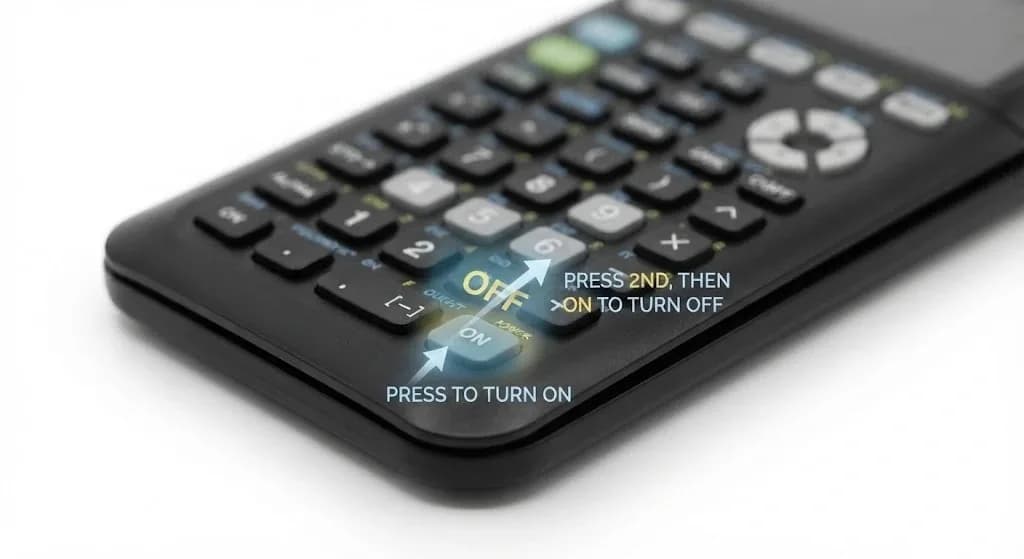
The ON key shows in the lower-left corner of the keypad. The blue OFF label appears above this same key, but it only works after you press 2nd.
Press the ON Key
Press ON once and give the TI-84 Plus CE calculator a moment to load. A new or recently reset unit may show an information screen before opening the home screen.
Check the Home Screen
A blinking cursor on the home screen shows that the calculator is ready. When Automatic Power Down switched it off earlier, it should return to the display and cursor position you left.
Adjust the Screen Brightness
Sometimes, there just is an issue with screen brightness being set too low. The user needs to press the 2nd + down arrow to lower the brightness and 2nd + up arrow to increase the brightness.
How To Turn Off TI 84 Calculator Plus CE: Correct Way
To turn off the TI 84 calculator Plus CE, all you need is a two-button command as opposed to pressing only the ON button. Once you know how to do this, you can easily turn off the calculator without damaging any of your work.
Use the 2nd Function Key
Press and release the blue 2nd key near the upper-left side of the keypad. A secondary-function symbol appears, which means the next blue command is active.
Press the OFF Command
Next, you can press ON because OFF is printed above it in blue. The complete sequence is 2nd, ON, and your settings and memory stay stored.
Confirm the Screen Is Off
The screen should become fully dark after the command works. However, a USB connection or communication with another calculator may wake the device again.
Avoid Removing the Battery
Removing the rechargeable battery is not a normal shutdown method. A keypad shutdown feels much safer because a fully lost charge may put unsaved RAM information at risk.
Understanding Auto-Sleep and Battery Saving
Built-in power features reduce battery use without making you manage every minute yourself.
- Automatic dimming: The screen becomes dimmer after about 90 seconds without activity. Pressing ON restores the selected brightness without changing your work.
- Automatic Power Down: The calculator switches off after around three to four inactive minutes. When pressing ON once more, your screen and cursor would generally return to where you had left them
- Battery indicator: The icon in the top-right portion shows battery level and charging status. I usually look at it before going into a long class or exam..
- Lower brightness: A comfortable middle setting can keep the screen clear without using the brightest level. This small change may help the charge last longer during regular study.
Troubleshooting Power Issues
If the TI-84 Plus CE calculator does not respond, check the power source before using a reset option.
- Check the Battery Icon & LED: You are able to plug in your calculator into any functional USB power source and look for its battery charging icon. The orange light on the calculator means it is charging, and the green one means it is charged up.
- Using the Back Reset Button: A frozen operating system may ignore every key even when power remains. You can hold the small back reset button for at least five seconds and restart the calculator, although RAM data may be cleared.
- Clearing RAM via Memory Menu: When menus remain stuck, press 2nd, +, 7, choose 1: All RAM, and then select 2: Reset. Since this removes unarchived variables and programs, we would leave it until simpler fixes have failed.
- Fixing USB Charging Failures: Try another compatible cable, check that the port fits firmly, and keep a connected laptop awake. TI Connect CE supplies the USB driver, while reinstalling the current operating system may solve a continuing software fault.
Frequently Asked Questions
Does the TI-84 Plus CE turn off automatically?
Yes, Automatic Power Down turns it off after about three to four minutes without activity. Your previous screen returns when you press ON.
Why won't my calculator turn off with the ON button?
The ON key alone only wakes or brightens the calculator. Press 2nd and then ON to use the blue OFF command.
How long does the battery last on a single charge?
Battery life changes with brightness and daily use. TI-84 Plus CE estimates around two weeks to as much as one month under normal use.
Final Words
Learning how to turn the TI-84 Plus CE on and off becomes easy once you understand the correct key sequence. You can use ON to power on the device and 2nd + ON to power it off. When the screen remains unresponsive despite these measures, troubleshooting other issues will solve the problem.