Home/How to Reset
How to Reset a TI 84 Plus & CE Calculator: Step-by-Step Guide
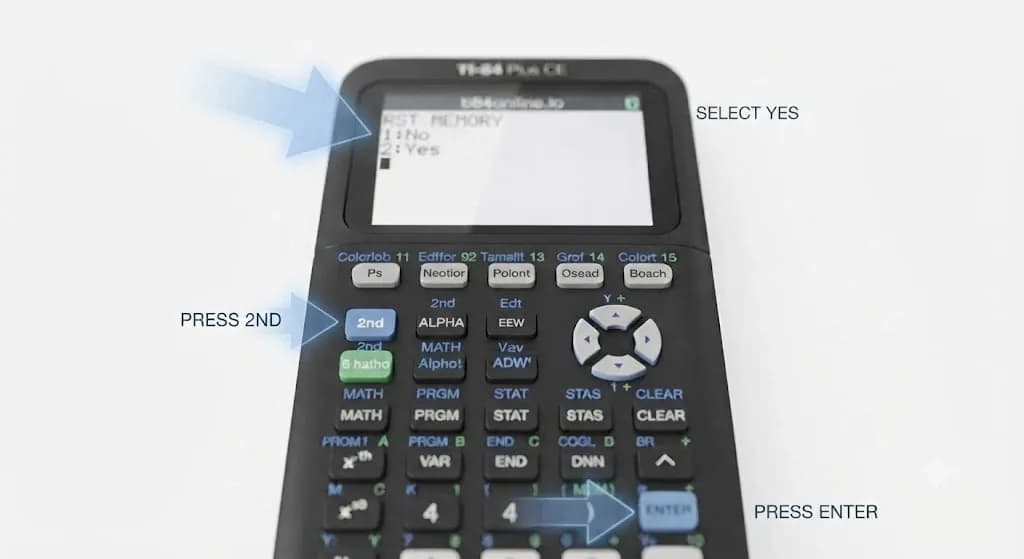
A TI-84 calculator can stop responding when a program gets stuck, the memory becomes crowded, or a setting causes repeated errors. You may press several keys, but nothing changes on the screen. At that moment, a full factory reset can seem like the easiest answer. However, I would not erase everything before checking whether a smaller reset can fix the problem. The first thing one needs to do to know how to reset a TI 84 Plus & CE calculator is to select the smallest reset that will be able to fix the issue.
You can stop a program, restore default settings, clear RAM, or erase all memory. Since the TI-84 Plus and TI-84 Plus CE use different battery systems, their hardware recovery steps also differ. We will begin with safer options and move toward stronger TI-84 Plus & CE calculator resets. As you move through the guide, you will see what every option deletes before you confirm it.
How to Reset a TI 84 Calculator: Soft Reset vs. Hard Reset Difference
A soft reset usually clears active data or stops a small software problem, while a hard reset removes much more information. Before we go through the button steps, the table below will help you decide which reset matches your situation.
| Feature | Soft Reset | Hard Reset |
|---|---|---|
| Wipes What? | Temporary calculation history | All device memory |
| Fixes Freezes? | Fixes basic glitches | Fixes deep loops |
| Deletes Apps? | Keeps apps safe | Wipes all apps |
| Main Menu Path | Select All RAM | Select All Memory |
Fixing a Frozen Screen: How to Reset a TI 84 Calculator Hardware
When the keypad does not respond, you may not be able to reach the Memory menu. We should first stop any running program, then try the correct hardware step for your model.
- Keypad Force-Quit: Hold ON for about two to five seconds until ERR: BREAK appears, then choose 1: Quit. This stops a running TI-Basic program without erasing your saved files.
- Back-Button Pin Reset: The TI-84 Plus CE has a small RESET button on the back. Press it with a paper clip for at least five seconds, but avoid using a pencil because it can leave debris inside the opening.
- Battery Door Slide: For a classic TI-84 Plus, you can remove one AAA battery and hold CLEAR. Reinsert the battery, press ON, and keep holding CLEAR until RAM Cleared appears. This method can remove unarchived RAM data, so use it only when normal keys do not respond.
- Internal Cable Pull: On a TI-84 Plus CE, disconnecting the battery should come after charging and the rear RESET button has failed. Remove the battery door, disconnect the rechargeable battery for about three minutes, and reconnect it carefully without pulling the wires.
Clearing Space Fast: How to Reset a TI 84 Calculator RAM
A RAM reset can help when variables cause errors or a program behaves badly. It clears active memory but protects archived files and apps, so let us follow the correct path.
Open the Memory Menu
Press 2nd, then +. The word MEM appears above the plus key, and this shortcut opens the calculator’s Memory menu.
Select the Reset Screen
Choose 7: Reset and press ENTER. Check the tab shown at the top before selecting an option because each tab clears a different part of the memory.
Choose RAM Clearing
Stay on the RAM tab and select 1: All RAM. This removes variables and programs held in active RAM but keeps archived data and installed apps.
Confirm the Wipe
Choose 2: Reset on the RESET RAM screen. The calculator displays RAM Cleared when the process finishes.
What Actually Gets Deleted?
Lists, variables, calculation data, and unarchived programs can disappear during an All RAM reset. I suggest archiving or backing up any custom program you want to keep before confirming the wipe.
The Exam Day Wipe: How to Reset a TI 84 Calculator Factory Settings
The closest option to a factory reset is All Memory. You may use it before an exam, before giving the calculator to another person, or when you want a completely empty device.
Access Memory Management Screen
Press 2nd → + to open the MEMORY menu. You will begin from the same place used for a normal RAM reset.
Enter the Reset Panel
Choose 7: Reset and press ENTER. You will first land on the RAM tab, but the complete wipe is located under another section.
Switch to the ALL Tab
Press the right arrow twice until ALL appears. You do not choose Archive because that tab only clears archived variables and programs rather than the complete device memory.
Select Full Formatting
Choose 1: All Memory. Although users call this formatting, the official menu option deletes programs, apps, RAM data, and archived files. Back up anything important with TI Connect CE before you continue.
Execute the Factory Wipe
Select 2: Reset and wait for MEM Cleared to appear. The calculator returns to its default settings, while its operating system remains installed.
Troubleshooting Guide: What to Do If Your Reset Fails
Sometimes, how to reset a TI 84 calculator memory is not the real issue. Test mode, low battery power, charging problems, or damaged system files may need a different solution.
- Stuck in Press-to-Test Mode: Press-to-Test temporarily blocks access to programs and apps rather than permanently deleting them. You can exit it through TI Connect CE’s Quit Exam Mode action or by transferring a file from another compatible TI-84 calculator.
- Screen Stays Completely Black: Charge a TI-84 Plus CE for one to two hours, make sure the cable fits firmly, and then hold the rear RESET button for at least five seconds. On a classic TI-84 Plus, check the AAA batteries before trying the battery-removal reset.
- Constant Error Loops: Restore Defaults through 2nd → + → 7: Reset → 2: Defaults → 2: Reset because this keeps your personal files. If the CE still fails, reinstall the latest operating system with TI Connect CE and back up your data first because an OS update resets RAM.
Frequently Asked Questions
How to clear TI 84 calculator?
Press CLEAR when you only want to remove the current entry. To clear active memory, use 2nd → + → 7: Reset → All RAM → Reset.
Will a factory reset downgrade my calculator’s operating system?
No, an All Memory reset removes user files and apps but leaves the calculator operating system installed. Reinstalling or updating the OS is a separate process.
Why did my custom programs disappear after a RAM reset?
They were likely stored in RAM instead of the archive. All RAM removes unarchived programs, while archived programs stay protected.
Final Verdict
Knowing how to reset a TI 84 calculator model helps you avoid deleting useful data by mistake. Start by stopping a stuck program or restoring the default settings. Clear RAM when you need to remove active data but want to keep apps and archived files. Use All Memory only for an exam, resale, or a complete fresh start. I would always check the selected tab and save important programs before confirming a reset. With the right method, you can fix most calculator problems without making the situation worse.